
Kitchen screens
The screens where the kitchen sees the orders, and the customer screens for those waiting to pick up.
What it is for
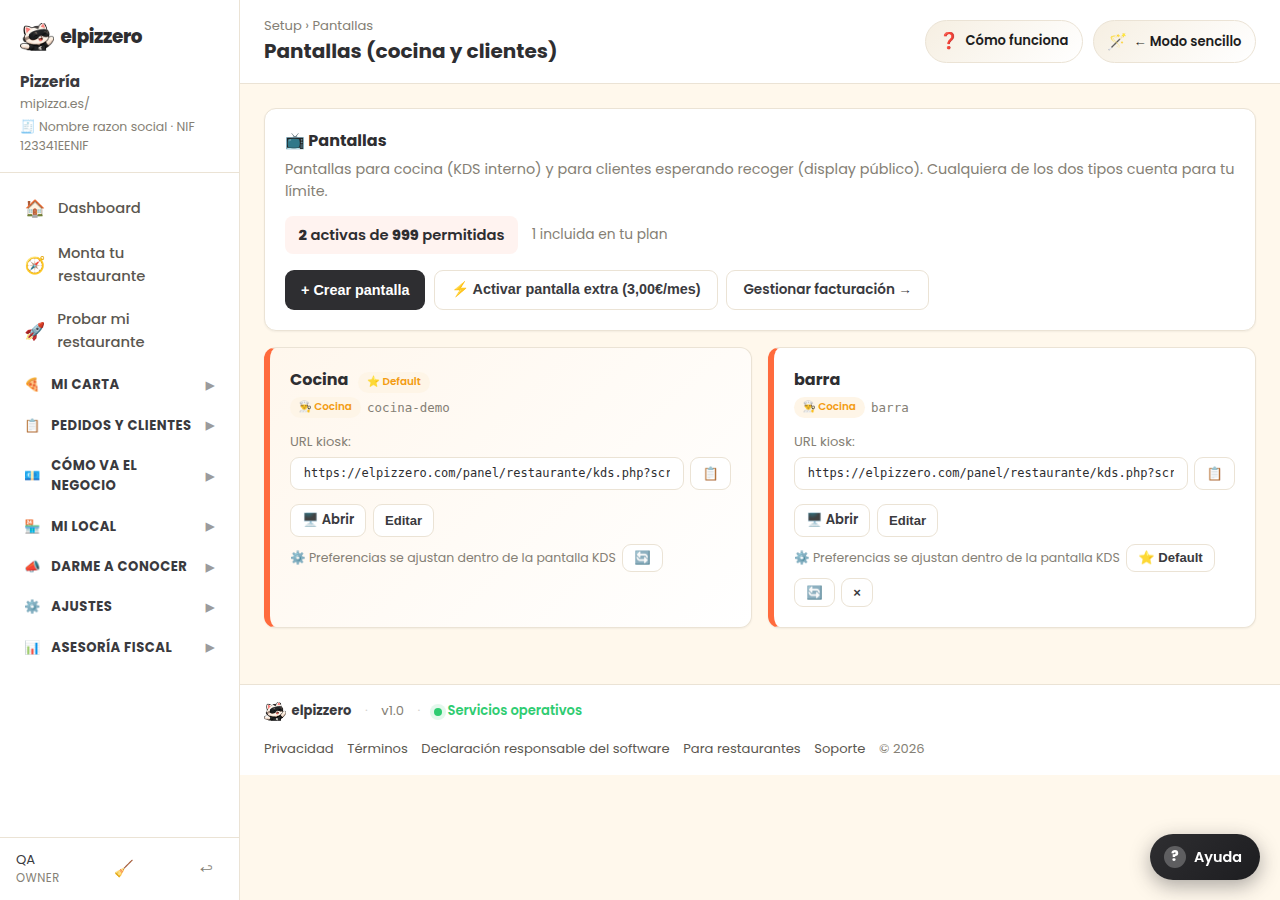
Create and organize the screens. There are two types:
- Kitchen: the one seen by the cook, with the orders and their dishes to check off as they are made.
- Customer: the one in the dining area, with the order numbers ready for pickup.
Any tablet, TV with a browser, or old computer will work. Nothing special is needed.
How to get started
- Press «+ Create screen» and give it a name («Kitchen», «Bar»…).
- Press «🖥️ Open» from the device that will act as the screen, or copy its link with the 📋 button.
If you have more than one kitchen
You can send each category to a different screen: pizzas to the oven, drinks to the bar. This is configured in Screen Routing.
The settings for each screen (columns, font size, sound, colors) are not adjusted here: they are set within the KDS screen itself, using the preferences button.
View all buttons and fields on this screen
What you will find on this screen
- 📺 Screens
- Kitchen ⭐ Default
What each button does
| Button | What it is for |
|---|---|
| + Create screen | |
| ⚡ Activate extra screen (3.00€/month) | |
| Manage billing → | |
| 📋 | |
| 🖥️ Open | |
| Edit | |
| 🔄 |