
Your printers
Connect ticket printers and decide which ones automatically print incoming orders.
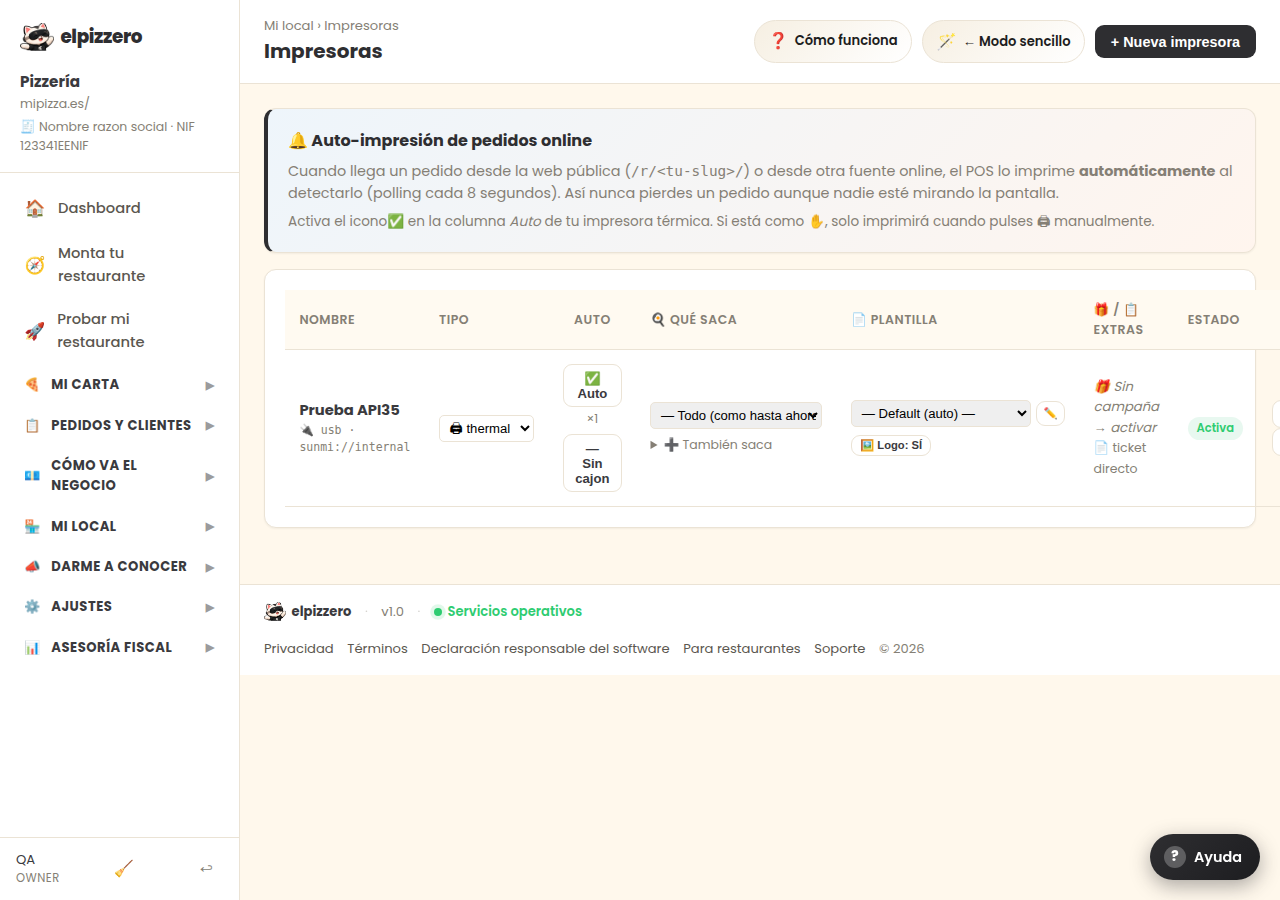
What it's for
This is where thermal printers are registered —via network cable, USB, or Bluetooth— and what each one prints is decided.
Auto-printing, which is what matters
When an order comes in from your website, the system can print it automatically, without anyone touching anything. This is controlled by the Auto column:
- ✅ Auto: automatically prints each incoming order. This is what you want in the kitchen.
- ✋ Manual: only prints when someone requests it from the POS.
What template each one uses
Each printer has its template. Normally, there are two: the kitchen order (without prices, with large dishes) and the customer ticket (with prices, totals, and QR codes).
If the ticket comes out with strange accents or cut off, it's a matter of the template and the printer model, not the order. It needs to be tested with the printer in front: each model behaves differently.
View all buttons and fields on this screen
What it asks for, field by field
| Field | Type | Detail |
|---|---|---|
| kind | dropdown | Options: 🖨 thermal, 🏷 label, 👨🍳 kitchen, 🍺 bar |
| template id | dropdown | Options: — Default (auto) —, ⭐ Order (global default) (system) ⭐ |
What each button does
| Button | What it does |
|---|---|
| ✅ Auto | Tap to toggle auto-printing |
| ✏️ | Open template editor |
| 🖼️ Logo: YES | Print the restaurant logo on this ticket. Disable it if your printer outputs symbols |
| Edit |